

I thought it’d be a pain but installing programs through the terminal is actually so nice, I never would have expected it
Madthumbs in shambles
Wait till you try fish or zsh loaded with all the fancy plugins lol
Oh-My-Zsh (https://ohmyz.sh/) is good if you want to try a nice suite of plugins and dotfiles.
or zoxide and yazi
Every now and then I have to analyze some data at work, and gladly I have full access to my work station, so I have WSL2 with Linux, and I wouldn’t know what to do without all that Linux CLI goodness. A mixture of Pipes, xsltproc, jq, Python to get the numbers out of millioons of log lines or xml or json files. If I was stuck on Windows the tasks would be tedious.
Honestly, it’s a pain in the ass. The shortcuts are different from the browser, so you forget and hit Ctrl+V. Then you remember and hit Ctrl+Shift+V and get some scribbles around what you were typing
They were there long before the browser. The problem is that they should work in the browser but they don’t.
I installed mint yesterday and am having a PAIN installing anything not in the software manager. Currently stuck on teamspeak as my first thing to try. Got a tar.gz and can’t find anything well explained online (as of yet, it was already 3 hours just to get mint to dual boot and I was exhausted)
Imma just update: I have given up and wiped the drive to use it as a game drive for windows again. Each turn just gave hours of headache and I’m just done trying.
Installing Mint took over 3 hours of searching obscure errors with solutions that were way too technical. In the end having gone from 5pm to 11pm just to get Mint dual booting. Got it installed and got teamspeak and stuff installed, after a bit too long having to find out but that’s fine. Spent 4 hours trying to get steam games to run, not a single working boot and couldn’t find anything online.
I might try again once I get my new AMD based game pc whenever I have budget for it. But for now, nah this took too long and took way too much effort. I just started a new work project which has already been exhausting and I just plain don’t have the energy to bother with this. Its not plug and play like people like to say online.
https://flathub.org/ is a great way to manage linux apps/programmes. Very easy and several other benefits
Can’t say for TeamSpeak, but will say for Linux: setting everything up and figuring out your steps in edge cases is the hardest part. Once you figure it out, it gets so much easier.
With .tar.gz software usually the steps are:
- Extract the archive
- Find a file with the .sh extention - that’s the shell script. It will most likely be named something like install.sh
- Make it executable - by right clicking and enabling it in the properties or by opening a terminal in this folder and using a command:
chmod +x install.sh- Run the installer in the terminal:
./install.shIt might ask you to run it as root and quit. In that case put a sudo before the command above and it will ask you for your password
sudo ./install.shAnd tbat’s it, installation should begin. Follow the instructions in your terminal.
It’s insane to me that Windows still doesn’t have a proper package manager. When you need to upgrade a program you’re expected to go to their website and download the latest version, or update it with its own update mechanism.
i mean its just a matter that app makers avoid the windows store. the only companies i recall I remotely use on the windows store are nvidias control panel (which is ironically being depricated for nvidia app and updates itself).
companies just don’t want to use the windows store aome because of the fear at some point if microsoft wants to take a cut of profits, they could strong arm it like android/ios/game console OS. Linux has the advantage that people will trust that repositories wont be paid.
They do, several third party options and of course the Microsoft store too. It’s the users who are stuck in their old ways, which ironically is the harder way. Weird.
At the same time if there’s a software I don’t use often I’m not wasting my time updating it every time I update everything else. So for example I haven’t played a game on the Ubisoft launcher in about a year, next time I do it will update to the current version from last year’s version and that will be it.
i like leaving top on all day just to watch it.
you’ve seen top, get ready for btop
i’m definitely ready to btop
I’m the htopopotamus, my processes are bottomless
Just wait until you find the fun TUI utilities, ill share a few:
- Shell: Fish (has powerful auto-complete, very fast, written in rust)
- Montior: Btop (monitors all system resources and processes)
- Fetch: Fastfetch (perfect for showing off on !unixporn@lemmy.world, for !unixsocks@lemmy.blahaj.zone Hyfetch is reccomnded)
- Brower: BrowSH (its a browser in your terminal)
- Text Editor: Vim (the best text editor, remeber to use esc + : + q to close or wq to write close vim. However when you open vim you can never quit)
- File manager: Ranger (if cd + ls is too inconvenient)
- Games (yes you can even play games in the terminal): 2048, Chess-TUI, NSnake, and Micro Tetris
next step to full on conversion is making your own dotfiles repo :)
Then get an old librebooted Thinkpad X230 with Arch GNU/Linux (and remind eveyone it’s GNU + Linux) :3
I have to check out some of these!
As for the browser, how does it display sites? Does it display images/video/play audio or is it mostly for just the text based stuff? How about ads/adblockers?
My guess is it works like Lynx.
https://en.m.wikipedia.org/wiki/Lynx_(web_browser)
You mainly get basic text formatting with some colors. It’s kinda neat. I imagine text heavy sites like Wikipedia (or Lemmy instances! Maybe other Fediverse stuff?) would be decent with it.
You can open media with external applications it says though.
Also hey, it’s not running all that fancy privacy-killing JavaScript! :D
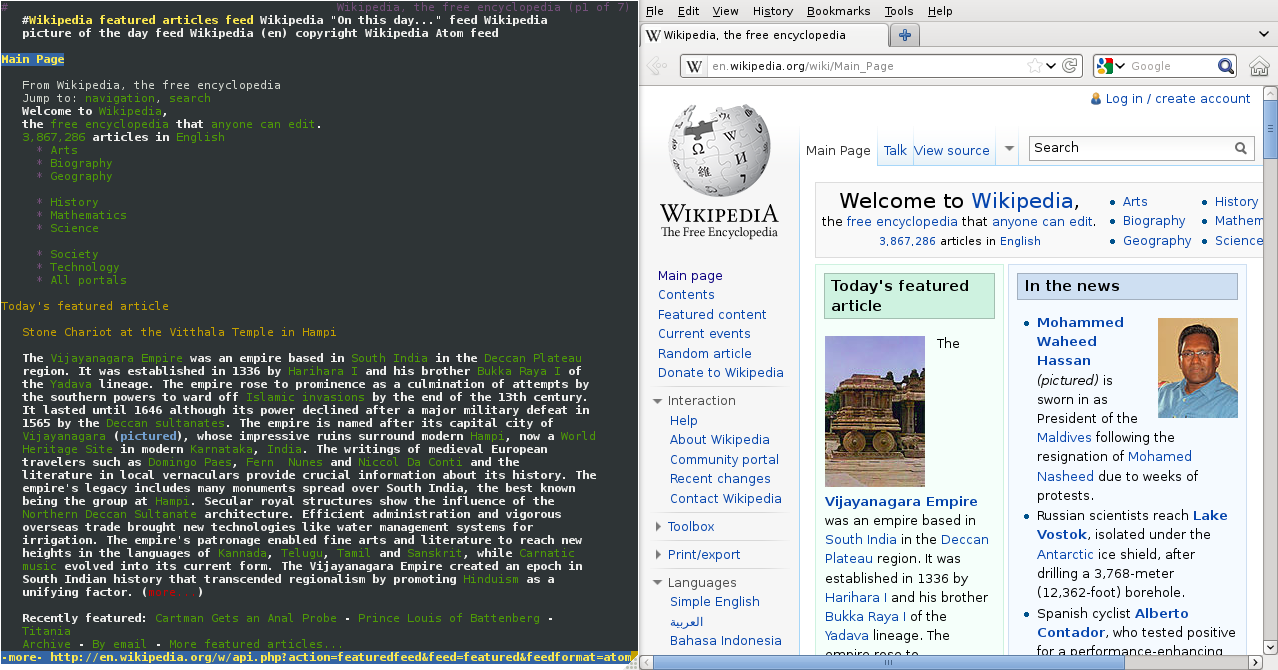
In some situations I imagine it’s fantastic for making your browsing look like you’re working on something important, if you have a problem with nosy shoulder-surfers.
Thanks, I’ll definitely have to try these, they look neat!
- tab completion works in more places than you might expect
- ctrl-a/ctrl-e for start/end of line
- ctrl-u to clear the command you’ve typed so far but store it into a temporary pastebuffer
- ctrl-y to paste the ctrl-u’d command
- ctrl-w to delete by word (I prefer binding to alt-backspace though)
- ctrl-r to search your command history
- alt-b/alt-f to move cursor back/forwards by word
- !! is shorthand for the previous run command; handy for
sudo !! - !$ is the last argument of the previous command; useful more often than you’d think
which footells you where thefooprogram is locatedls -lacdwithout any args takes you to your home dircd -takes you to your previous dir- ~ is a shorthand for your home dir
Saving this! Absolutely gold, thanks for writing it up. You’re what makes the Linux community cool. ❤️
tab completion works in more places than you might expect
I’ve found tab to be such a nice “please give me a hint” button.
- Bonus tip : Sometimes you won’t get auto complete because there’s too many possibilities and the computer can’t be certain which one you want. Hitting tab multiple times will show the possibilities, so you can type in enough characters to remove ambiguity, hit tab again, and boom auto complete!
…That was a terribly convoluted explanation I’m sorry. Just try hitting tab multiple times for fun if you’re stuck it’s kinda handy. Lol
I’ve been using the commandline for so long but was always too lazy to look up the rest of these commands after ctrl+a/e and ctrl+r THANK YOU!!!
post this commend again and again! There’s always lazy idiots like me who will be helped that way!
Nice list, TIL about
Ctrl+UandCtrl+Y.If I may add,
Ctrl+XintoCtrl+Eopens$EDITORto edit the current line.- alt-. also pastes the last argument of the previous command (useful if you need to modify it a bit)
- instead of any shortcuts starting with “alt” you can also press “esc” followed by the second key, e.g. pressing “esc”, releasing it and then “a” is the same as pressing “alt-a” (useful if you have only one hand available, or if alt is not availalble)
- if you put a space before a command, it will not be saved in history (useful sometimes, e.g. if you pass a password directly as an argument)
Makes me realize just how illogical and bad these shortcuts are
I believe, these are Emacs shortcuts. There’s also
set -o viin bash, but I’ve never used it, so can’t vouch for it.Explains why they are so illogical! Unfortunately i think its better to just learn the defaults since i remote into lots of servers where i dont carry my config
That’s good to know. It’s interesting that the other commenter thinks emacs shortcuts are illogical. I’ll make my best guesses at the logic
- ctrl-a/ctrl-e for start/end of line
a is the beginning of the alphabet; e for end (of line)
- ctrl-u to clear the command you’ve typed so far but store it into a temporary pastebuffer
- ctrl-y to paste the ctrl-u’d command
No idea here. Seems similar to nano with k-“cut” and u-”uncut”.
- ctrl-w to delete by word
w for word obviously.
- ctrl-r to search your command history
- alt-b/alt-f to move cursor back/forwards by word
r reverse, b back, f forward. Not sure why alt vs control though; presumably ctrl+b and ctrl+f do different things although I know emacs likes to use Alt (“Meta”) a lot.
In the 1980s, Digital Equipment Corporation had a word processor, WPS. Ctrl-u cleared the line you were typing and put it into the paste buffer. Maybe legacy usage?
Saved! Thank you so much.
I’ve used Linux full-time since late 2020 and I never knew about
ctrl+yandctrl+u.I’d also like to contribute some knowledge.
aliases
You can put these into your
~/.bashrcor~/.zshrcor whatever shell you use.### ### ls aliases ### # ls = colors alias ls='ls --color=auto' # ll = ls + human readable file sizes alias ll='ls -lh --color=auto' # lla = ll + show hidden files and folders alias lla='ls -lah --color=auto' ### ### other aliases ### # set color for different commands alias diff='diff --color=auto' alias grep='grep --color=auto' alias ip='ip --color=auto' # my favourite way of navigating to a far-off folder # this scans my home folder and presents me with a list of # fuzzy-searchable folders # you need fzf and fd installed for this alias to work alias cdd='cd "$(sudo fd -t d . ${HOME} | fzf)"'recommendations
ncdu - a shell-based tool to analyze disk usage, think GNOME’s baobab or KDE’s filelight but in the terminal
zellij - tmux but easy and with nice colors
atuin - shell history but good, fuzzy-searchable. If you still have the basic shell history (when pressing
ctrl+r), I cannot recommend this enough.ranger - a terminal file-browser (does everything I need and way more)
+1 for Atuin. I constantly use it on my machine and SSH-ing on remote machines who don’t have it is an absolute pain.
I’m gonna have to save this thread and check some of those!
Yeah, linux-servers without the tools installed in your PC are a hassle. That’s why I learned to work with vim, as that’s in nearly every distro’s repo.
I recommended atuin as I was using it before, but currently I am using ohmyzsh with the fzf plugin for zsh. This has a very atuin-like interface and handling, but as a plugin for zsh itself.

Also, Terminal User Interfaces are a nice middle ground between learning terminal commands and having a GUI.
Example:
btop - process manager TUI
ncmpcpp - TUI media player, used mpd on the backend
Here’s a big list: https://github.com/rothgar/awesome-tuis
Also, Terminal User Interfaces are a nice middle ground between learning terminal commands and having a GUI.
Yes, TUIs definitely help reduce possible stress and fear of complexity for new users.
Thanks for the git link, didn’t know that, just starred it :)
If you’re looking for a full list of these kind of navigation shortcuts, they all come from
readlineso read themanpage for that. Or just look up the basic navigation ofemacswhich is whatreadlineis mimicking.A neat thing is that a lot of command line programs use readline. So learning and configuring it will also be useful in for example the Python REPL and calc.
Here are some neat configuration options you can put in
~/.inputrcset completion-ignore-case on set show-all-if-ambiguous on set completion-prefix-display-length 9 set blink-matching-paren on set mark-symlinked-directories onAnd if you are a sensible person who is used to vim
set editing-mode vi
set show-mode-in-prompt on
Could you 'splain it to me? Cuz I installed Mint 3 months ago, totally happy, and I don’t get it.
Isn’t it fun? It’s like owning your car and learning what everything actually does, and figuring out how to fix it. And having an amazing community to boot!. I enjoy it.
I’m thinking of making Linux my daily driver apart for some software I need for work. People are super positive about it on here, but isn’t it still the case that some peripherals won’t work? Or that I’ll spend a ton of time making the system work instead of actually using the system?
It would be for gaming that I’d use the Linux installation mostly.
It depends a lot on your hardware. All of my stuff was picked up instantly (all AMD), my kb/mouse/tartarus of course, and my Logitech wheel. Now if you mean VR, linux struggles with that right now at least for oculus. The vive is ok with steam only games I heard.
I treat it a lot like an old car. I love it and tinkering on it is fun, but if an emergency pops up and I have to, I can reboot into windows. Really trying to never have to do that, except for VR and games like PUBG (which yeah we shouldn’t support but my friends and I still like it sometimes).
If you’re the type that craves learning and the journey is more fun than the goal (ie, me), then do it! I just put mint and popos on 3 different computers and have been having a lot of fun with it.
Speaking from personal experience but pretty universal one at that.
Once terminal kinda “clicks” you will get the urge to tweak stuff. It happens because there is bunch “demo apps” that are just cool to mess around with but simply don’t get known on co-orperate OS. Check this as example.
If games you play or tools you use can be fitted to linux, at some point you will port 80% of your workflow just messing around during the tweaking. Like when you do your first rice.
And after that you can confidently chose if you want to add on to that or continue dualboot.
You’ve taken your first step into a larger world.
I really like having a hotkey bound to the terminal window, so I can pop open a terminal, check something, and return to what I was doing.
Why the hell did they misspell (and presumably mispronounce) tilde?
For a moment I wondered why I never bound a hotkey thusly, but it’s because I simply almost always have at least one terminal open in each workspace.
FWIW, most Debians (which includes Ubuntu and Mint) have Ctrl+Alt+T set to open the default terminal program without needing to install anything else. This is usually reconfigurable in the system settings too if that’s an awkward stretch.
But I get that people like the drop-down terminals too, for which see also Yakuake and Guake.
Before Tilde and friends, that’s what I use. I prefer having a drop-down with the same terminal session.
But that’s a handy default.
Just wait when you try AUR on arch systems. I was long time ubuntu based user but once I tasted rolling release and AUR I don’t want to go back.
It is going to make to want to go back
Someday
When you least expect it, and have a deadline
For me that day was yesterday. Ran an update. Next bootup got a black screen.
Saw it as a sign that it’s time to distro hop again lol
I know the feeling! I’ve been happily rolling with opensuse tumbleweed for almost a year now. Btrfs rollback is a life saver (2 times). Less than 5 minutes for a rollback. Other than that, pretty solid…
Snapper is the shit
That happened to me few times, once GPU driver update, once grub update, both relatively easy to fix by searching the error on Endeavour forums and reading their official updates. And both of these issues was me not reading the update notes.
And when I was once forced to reinstall it was matter of an hour at most to have PC with working environment up and running, thanks to separate home mount and keeping all my installation notes in one place.
But one can do that with Ubuntu too.
I learnt one lesson from my manny distro-hopping sessions in the last 12 years, allways separate home from system amd keep all essential installation scripts and files in one place.
I was a Nobara user and I’ve gone back. Too many updates that Bork the DE/bootloader (TBF it’s not as maintained as AUR) As for fedora… Random NVidia update borked the system too… But I’m resigned as my GPU being cursed rather than the distro being the isue
Welcome in from the cold. We have hot cocoa and blankets.